Customer Guide
Welcome! This guide walks you through everything you can do as a customer — viewing your invoices, paying online, and keeping track of your billing history.
Getting Started
You don't need to create an account. When someone sends you an invoice through SlimFact, you get a link. Click it, and you're looking at your invoice.
If your SlimFact instance supports self-registration, you can also create an account to see all your invoices in one place.
Opening an Invoice
- Open the invoice link from your email (it looks like
/invoice/some-uuid) - You'll see the full invoice — company details, line items, totals, and payment options
- If online payment is available, click the payment button to pay
Paying an Invoice
Online Payment
If the invoice has online payment enabled:
- Click the Pay button on the invoice page
- Select your payment method — iDEAL, credit card, or whatever the sender configured
- You'll be redirected to the payment provider (Mollie or Stripe)
- Complete the payment on the provider's page
- You'll be redirected back — the invoice now shows as paid
iDEAL: Select your bank, log in, and authorize the payment. Credit card: Enter your card details and confirm.
Bank Transfer
If the invoice shows an IBAN and an EPC QR code:
- Use the QR code with your banking app, or
- Manually transfer the amount to the shown IBAN
- Include the payment reference in the transfer description
- The sender marks the invoice as paid once the transfer arrives
Your Invoice Portal
If you have an account, you get a personal dashboard.
Viewing Your Invoices
- Log in and go to Account → Invoices
- You'll see a list of all your invoices with status indicators
- Click any invoice to expand it and see details
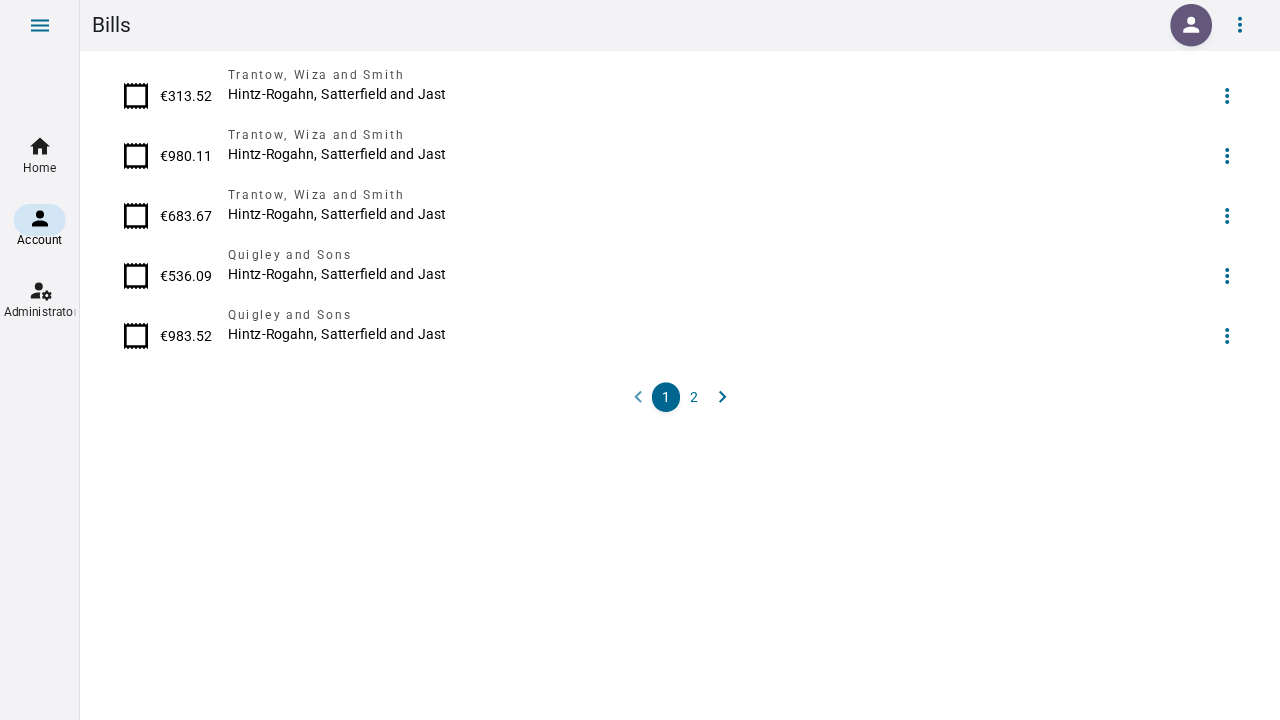
Viewing Your Bills
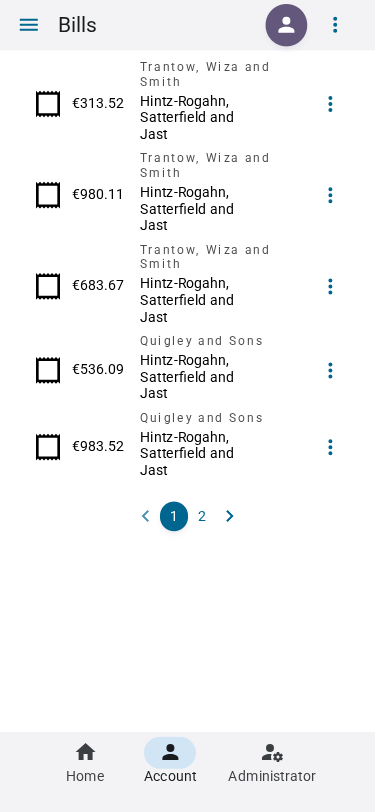
- Go to Account → Bills
- Same layout as invoices — click to expand
- Bills must be paid before they can be converted to receipts, and receipts to invoices
Invoice Statuses
| Status | What it means |
|---|---|
| Concept | The sender is still working on it — not yet sent |
| Open | Sent to you, awaiting payment |
| Paid | You've paid, all done |
| Cancelled | The invoice has been cancelled |
On Mobile
SlimFact works great on your phone. The invoice page adapts to any screen size — view, pay, and track your invoices on the go.